What the file contains
| Employee Name | Service Date | Hours | Hourly Rate | Amount |
|---|---|---|---|---|
| Tom Becker | 2026-09-14 | 8.00 | blank | blank |
| Priya Nair | 2026-09-14 | 8.00 | blank | blank |
| Luis Ortega | 2026-09-15 | 8.00 | blank | blank |
Four steps
Step 1: Approve the hours
Timesheets follow the normal review. On a team, only approved entries reach the export, so the file is payroll-ready.
Step 2: Open the payroll export
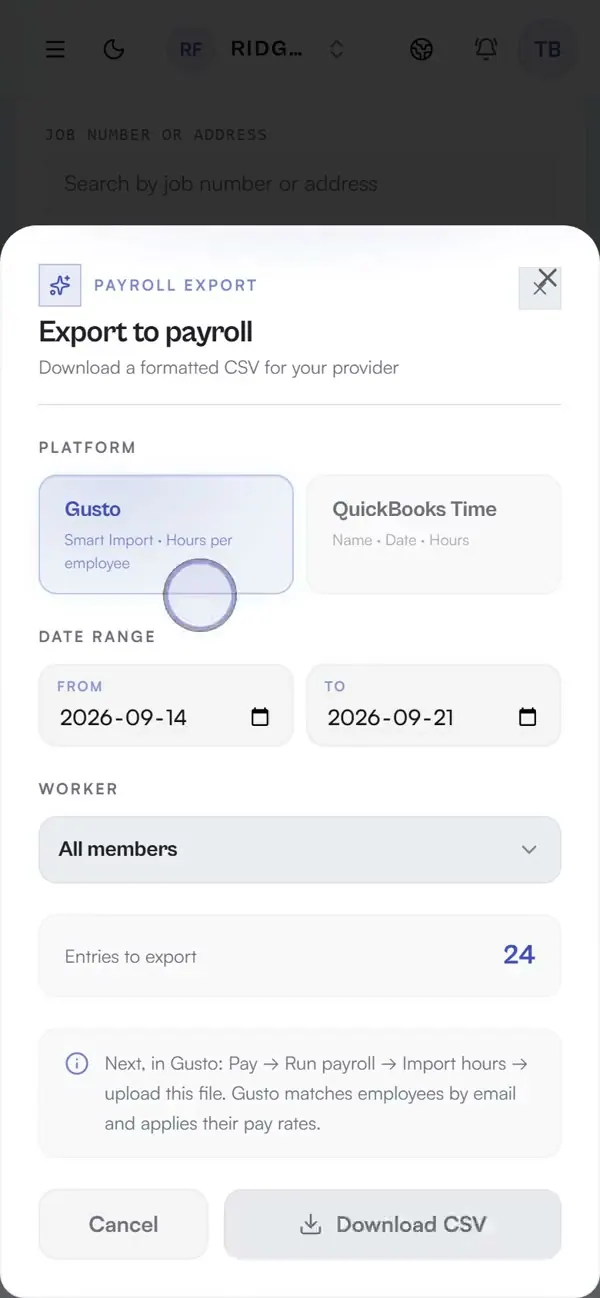
From Timesheets, choose Export and select QuickBooks. Daybill checks the batch and warns you if an employee name is missing.
Step 3: Download the CSV
Each entry becomes one row with Employee Name, Service Date and Hours. The Hourly Rate and Amount columns are in the file but left blank, so pay rates stay in QuickBooks.
Step 4: Import in QuickBooks Time
In QuickBooks Time, open Timesheets → Import and upload the file. Names must match the team members in QuickBooks.
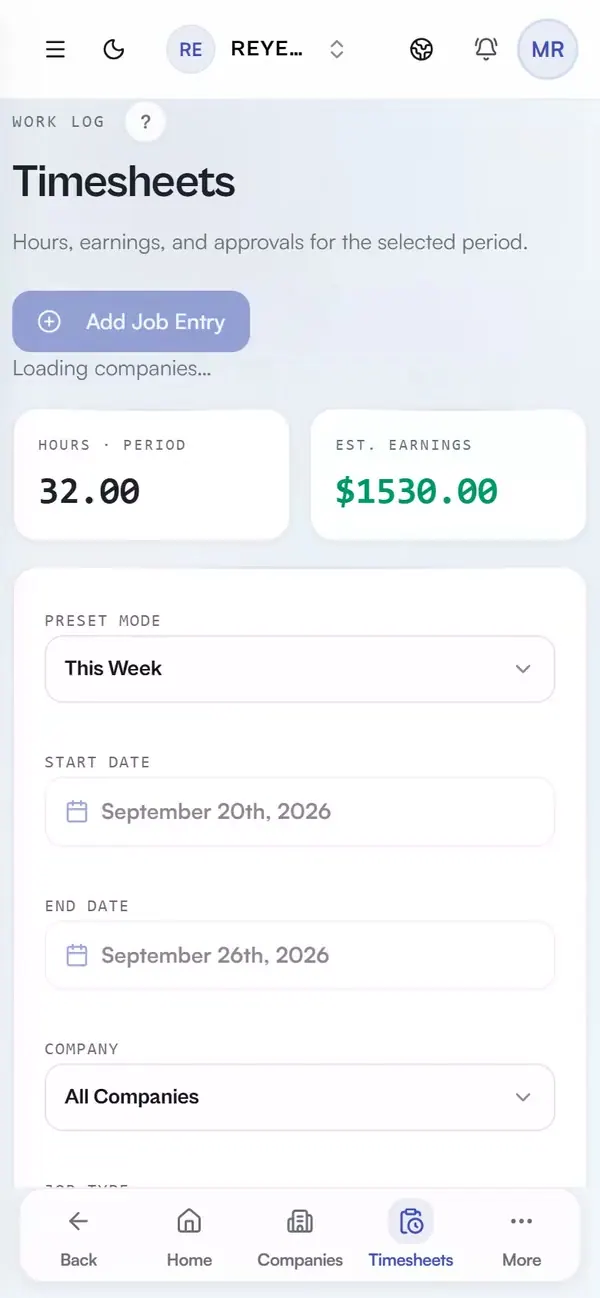
See the source record before export.
Daybill keeps the service date, company, hours, rate, and amount together in Timesheets. Those records are reviewed before the QuickBooks Time CSV is prepared.
Common questions
What columns are in the export file?
Five columns: Employee Name, Service Date, Hours, Hourly Rate and Amount. Daybill fills the name, date and hours for each timesheet entry and leaves Hourly Rate and Amount blank, so pay rates come from QuickBooks.
Is this a QuickBooks integration?
It is a CSV export in QuickBooks Time import format. There is no account linking or API key: download from Daybill, then upload in QuickBooks Time.
Why do employee names have to match?
QuickBooks Time matches rows by name. Daybill warns about blank names before download so entries are not silently skipped.
Which plans can export?
Every plan. QuickBooks and Gusto payroll-ready CSV export is included on the free Solo plan.
Try the export on your own hours.
No credit card. The free plan stays free and includes CSV export.
Part of the full field crew management stack.